From 40 to 80 WPM: The Ultimate Guide to Improve Typing Speed in 30 Days
The 30-Day Speed Trap
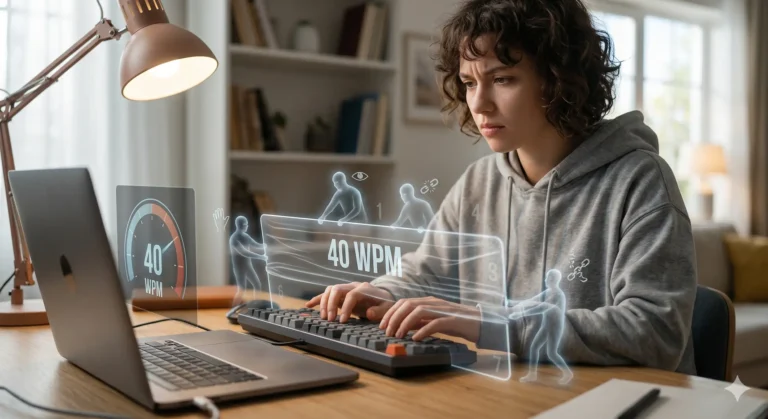
Ever feel like your brain is racing at 100 mph, but your fingers are stuck in second gear? Watching your cursor blink expectantly while you hunt for the “B” key is more than just annoying—it’s a massive bottleneck to your productivity.
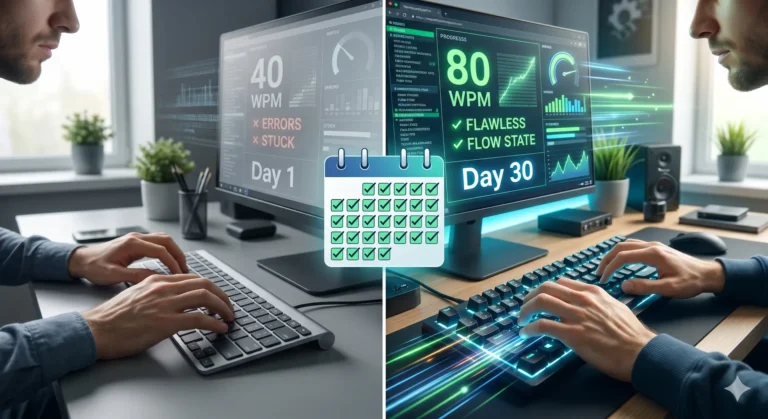
To improve typing speed and double your Words Per Minute (WPM) in 30 days, you must transition from “hunt and peck” to touch typing, maintain ergonomic posture, and commit to 20 minutes of deliberate practice daily. By focusing on the home row method and prioritizing accuracy over raw speed, the average user can realistically jump from 40 WPM to 80+ WPM within a month.
Why Typing Speed is the Ultimate Productivity Hack
If you spend five hours a day on a computer, increasing your speed from 40 WPM to 80 WPM saves you roughly two hours of active typing time. Over a year, that’s hundreds of hours reclaimed.
In the world of high-end PC builds and custom mechanical keyboards, we often obsess over millisecond latency in our hardware. However, the biggest “latency” in your workflow is likely the gap between your thoughts and your keystrokes.
Secondary Keywords Integrated:
- Touch typing techniques
- Words per minute (WPM)
- Mechanical keyboards for typing
- Typing practice drills
Phase 1: The Foundations (Days 1–7)
The first week isn’t about speed; it’s about breaking bad habits. If you’re looking at your hands, you’ve already lost.
Mastering the Home Row
Your fingers must live on the “Home Row” (ASDF for the left hand, JKL; for the right). Most modern keyboards have small tactile bumps on the F and J keys—these are your anchors.
- Left Index: F
- Right Index: J
- Thumbs: Spacebar exclusively.
The Golden Rule: Never Look Down
Tape a piece of paper over your hands if you have to. Your brain needs to build a spatial map of the keyboard. Looking down resets that mental map and prevents muscle memory from forming.
Ergonomic Posture: The “Invisible” Speed Boost
Speed starts in your shoulders, not just your fingertips.
- Elbows: Kept at a 90-degree angle.
- Wrists: Hovering slightly, not resting on the desk or a “mushy” wrist rest.
- Eyes: Level with the top third of your monitor to prevent neck strain.
Phase 2: Building Muscle Memory (Days 8–14)
Once you know where the keys are, you need to teach your nervous system to find them without conscious thought. This is where touch typing techniques come into play.
The 100% Accuracy Goal
During week two, speed is your enemy. If you type 100 WPM but have to hit backspace every three words, your “effective speed” is abysmal.
- Aim for 98% accuracy or higher.
- If you make a mistake, don’t just fix it—re-type the entire word correctly.
- Slow down on difficult bigrams (common letter pairs like “th,” “er,” or “ou”).
Typing Practice Drills for Neural Mapping
Use tools that emphasize “n-gram” practice. Instead of typing random sentences, focus on the most common letter combinations in the English language.
- Focus Drills: Practice words that use your weakest fingers (usually the pinky and ring fingers).
- Rhythm: Try to keep a steady metronome-like beat. Consistency is faster than “bursting” and then pausing.
Phase 3: The Gear Factor (Days 15–21)
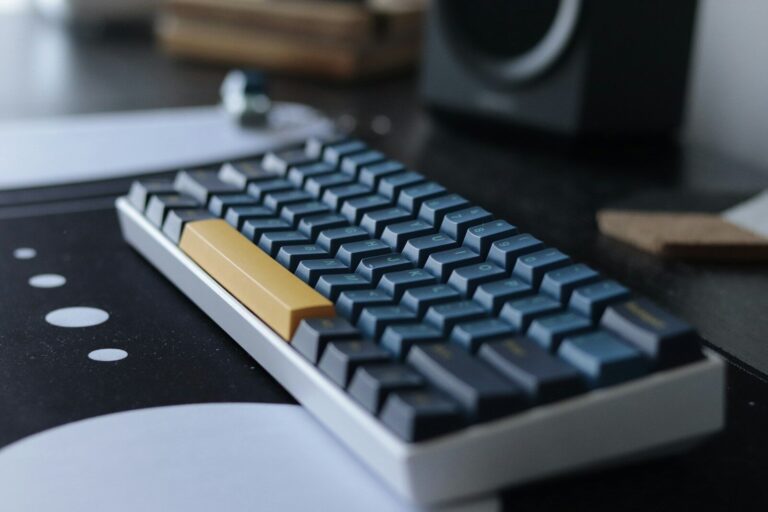
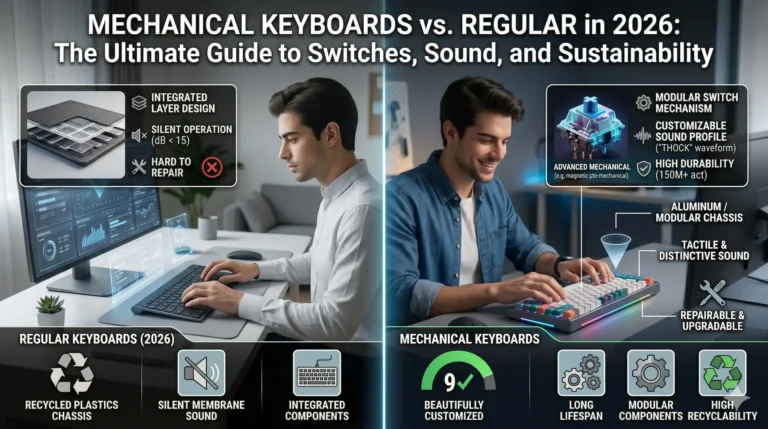
As a tech enthusiast, you know that the “mushy” membrane keyboard that came with your office PC is holding you back. Around day 15, your muscle memory is strong enough to benefit from specialized mechanical keyboards for typing.
Switch Selection: Linear vs. Tactile
The “feel” of a keypress significantly impacts your WPM.
- Tactile Switches (e.g., Cherry MX Brown, Boba U4T): These provide a physical “bump” when the key actuates. This feedback tells your brain exactly when the letter has registered, allowing you to move to the next key faster.
- Linear Switches (e.g., Cherry MX Red, Gateron Yellow): Smooth and fast, but easier to “bottom out.” Some pros prefer these for speed, but beginners often find they cause more typos.
Keycap Profiles and Travel Distance
Consider a keyboard with a shorter actuation point. “Speed” switches or low-profile mechanical boards (like the Logitech G915 or Keychron K-series) reduce the physical distance your fingers have to travel, shaving off precious milliseconds.
Phase 4: Optimization and Speed Bursts (Days 22–30)
Now that your accuracy is locked in and your gear is optimized, it’s time to take the governor off the engine.
The “Bursting” Technique
Start practicing “bursting” common short words like “the,” “and,” and “ion.” These should feel like a single chord rather than individual letters.
Advanced Typing Practice Drills
Move away from basic word lists and start typing:
- Code snippets: If you’re a developer, use sites like Typing.io.
- Literature: Type out paragraphs from books to practice punctuation and capitalization.
- Quotes: Use TypeRacer to add a competitive element. Racing against others forces you to maintain composure under pressure.
Top Tools to Improve Typing Speed
Don’t just type in a Word doc. Use these data-driven platforms to track your progress:
| Tool | Best For | Why Use It? |
| Monkeytype | Customization | Clean UI, allows for “thicc” word sets and n-gram testing. |
| Keybr | Learning Layout | Uses an algorithm to find your weakest letters and drills them. |
| 10FastFingers | Benchmarking | The industry standard for checking your raw WPM. |
| TypingClub | Beginners | Excellent for learning the home row from scratch. |
Common Pitfalls to Avoid
- Bottoming Out: Pressing the key all the way down until it hits the plate. With mechanical switches, you only need to press halfway to actuate. Learning to “float” saves energy.
- Death Gripping: Tensing your hands. If your hands feel sore after 10 minutes, you’re pressing too hard. Stay fluid.
- Neglecting the Pinkies: Most people “cheat” by using their index fingers for keys meant for the pinky (like ‘P’ or ‘Q’). This creates unnecessary hand movement.
The Bottom Line: Consistency Over Intensity
Doubling your typing speed isn’t about one 5-hour marathon session. It’s about the 20 minutes you spend every morning before you check your email.
By Day 30, the keyboard will no longer feel like a peripheral; it will feel like an extension of your hands. You’ll stop thinking about “where is the M?” and start thinking about the ideas you’re putting on the screen.
Are you still using the “hunt and peck” method, or have you already started your journey to 100 WPM?